
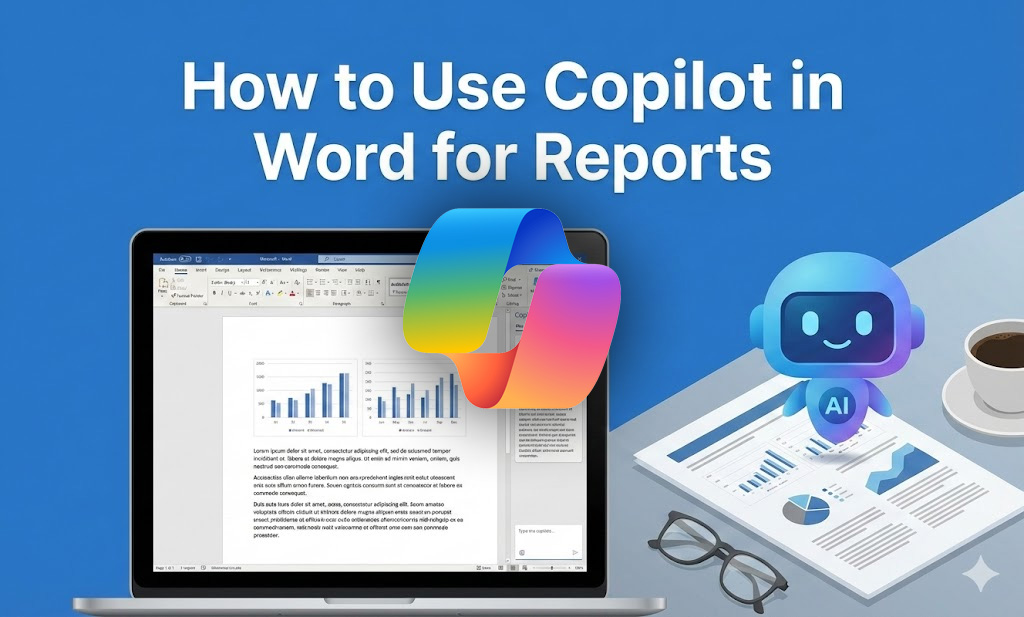
Creating professional reports can be time-consuming—especially if you’re starting from scratch. Fortunately, Microsoft Copilot in Word can help you draft, rewrite, summarize, and polish reports in minutes instead of hours.
In this complete guide, you’ll learn how to use Copilot in Word for reports, including step-by-step instructions, practical prompts, formatting tips, and best practices to maximize productivity.
Whether you’re a student, employee, manager, or business owner, this tutorial will help you create high-quality reports faster and smarter.
What Is Copilot in Word?
Microsoft Word now integrates AI-powered assistance through Microsoft Copilot. Copilot helps you:
- Generate report drafts from simple instructions
- Summarize long documents
- Rewrite content for clarity or tone
- Create structured outlines
- Improve grammar and flow
- Turn bullet points into full paragraphs
- Analyze data and explain insights
Instead of staring at a blank page, you can now start with AI-generated content and refine it.
Requirements Before You Start
To use Copilot in Word for reports, you need:
- A Microsoft 365 subscription that includes Copilot
- Updated Microsoft Word (desktop or web version)
- Stable internet connection
- Work or school account (in most cases)
Once Copilot is enabled, you’ll see the Copilot icon in the ribbon or on the right part.
How to Use Copilot in Word for Reports (Step-by-Step)
Let’s go through the exact process.
Step 1: Open Microsoft Word
- Open Microsoft Word and create a new blank document or open an existing file.
- Look for the Copilot button in the Home tab or the right panel.
- Click it to open the Copilot pane.

Step 2: Generate a Report Draft from Scratch
One of the best features of Copilot is generating a full report instantly.
Example Prompt:
Create a 5-page business report about the impact of remote work on productivity. Include an executive summary, introduction, analysis, and conclusion.
Copilot will generate:
- Title
- Executive Summary
- Structured Sections
- Key Points
- Conclusion
You can then edit, refine, and personalize the content.
Pro Tip:
Be specific in your instructions. Instead of saying:
Write a report about marketing.
Say:
Write a formal marketing performance report for Q4 2025 including key metrics, campaign results, challenges, and recommendations.
The more detailed your prompt, the better the output.
Step 3: Create a Report Outline First
If you prefer structure before writing, ask Copilot to create an outline.
Example Prompt:
Create a detailed outline for a technical report about cybersecurity risks in small businesses.
Copilot will generate sections such as:
- Executive Summary
- Background
- Current Threat Landscape
- Risk Analysis
- Prevention Strategies
- Recommendations
- Conclusion
You can then ask:
Expand section 3 into a detailed explanation.
This approach gives you more control over the final report.
Step 4: Use Copilot to Rewrite and Improve Sections
Already have a draft? Copilot can improve it.
Highlight a paragraph and ask:
- “Rewrite this in a more formal tone.”
- “Make this section clearer and more concise.”
- “Expand this section with supporting details.”
- “Simplify this paragraph for a non-technical audience.”
This is extremely helpful for:
- Academic reports
- Corporate documents
- Research summaries
- Client presentations
Step 5: Summarize Long Reports
If you have a 10-page document and need a short summary:
Click Copilot and type:
Summarize this report in 5 bullet points.
Or:
Create an executive summary based on this document.
Copilot will analyze the content and generate a professional summary suitable for managers or stakeholders.
Step 6: Insert Tables and Data Explanations
If your report includes data, Copilot can help interpret it.
Example:
Explain the trends shown in this sales data and write a short analysis paragraph.
Copilot can:
- Identify patterns
- Highlight growth or decline
- Suggest conclusions
- Draft analysis commentary
This is perfect for:
- Sales reports
- Financial reports
- Project performance reports
- Research data analysis
Step 7: Format Your Report Professionally
After generating content, you should format your report properly.
Ask Copilot:
Format this document as a professional business report with headings and subheadings.
Or:
Apply a formal academic formatting style to this report.
Copilot can:
- Organize headings
- Improve structure
- Suggest formatting improvements
- Standardize tone
However, always double-check formatting manually to ensure it matches your company or school requirements.
Best Prompts for Writing Reports with Copilot
Here are powerful prompt examples you can copy and use:
For Business Reports
- “Create a quarterly business performance report.”
- “Write a project status report with risks and recommendations.”
- “Draft a client progress report.”
For Academic Reports
- “Write a research report on climate change impacts in Southeast Asia.”
- “Create a lab report with methodology, results, and discussion.”
- “Summarize findings in formal academic language.”
For Technical Reports
- “Generate a technical report explaining cloud migration strategy.”
- “Write a cybersecurity risk assessment report.”
Tips to Get Better Results from Copilot in Word
To truly master how to use Copilot in Word for reports, follow these best practices:
1. Be Specific
Specific prompts produce better results.
2. Provide Context
Include:
- Target audience
- Tone (formal, academic, casual)
- Length requirement
- Purpose of report
3. Edit and Personalize
Copilot gives you a draft, not a final version. Always:
- Add real data
- Verify facts
- Adjust tone
- Remove unnecessary fluff
4. Use It in Stages
Instead of generating everything at once:
- Create outline
- Expand sections
- Refine language
- Generate summary
This produces higher-quality output.
Common Mistakes to Avoid
When using Copilot in Word for reports, avoid these errors:
- Relying 100% on AI – Always fact-check important details.
- Using Vague Prompts – “Write a report” is too broad.
- Skipping Review – Grammar may be correct, but context may not match your needs.
- Ignoring Company Guidelines – Always follow official templates when required.
Real Example: Creating a Business Report Using Copilot
Let’s say you need a Monthly Sales Report.
Step 1 Prompt:
Create a professional monthly sales report for January 2026 including revenue performance, key achievements, challenges, and recommendations.
Step 2:
Add your real numbers manually.
Step 3:
Ask:
Improve the executive summary to highlight revenue growth.
Step 4:
Ask:
Create a short conclusion with strategic recommendations.
In less than 10 minutes, you’ll have a structured, polished report.
Is Copilot Safe for Confidential Reports?
Copilot works within your organization’s Microsoft 365 environment. However:
- Avoid pasting highly sensitive data without checking company policy.
- Follow your organization’s data compliance rules.
- Confirm security settings with IT if unsure.
Frequently Asked Questions (FAQ)
Can I use Copilot in Word offline?
No, Copilot requires an internet connection.
Is Copilot available in all versions of Word?
It’s available in supported Microsoft 365 plans with Copilot access.
Can Copilot generate citations for academic reports?
Yes, but you should verify all references manually.
Does Copilot replace human writing?
No. It enhances productivity but still requires human review.
Final Thoughts
Learning how to use Copilot in Word for reports can transform the way you work. Instead of struggling with structure and wording, you can focus on strategy, insights, and decision-making.
Copilot acts as your intelligent writing assistant—helping you draft, refine, summarize, and polish reports in record time.
If you regularly create business, academic, or technical reports, mastering Copilot in Word is no longer optional—it’s a competitive advantage.
Start using it today and experience smarter report writing.
Read Also