
Today, productivity is everything. Businesses and professionals are constantly looking for ways to save time, reduce repetitive tasks, and focus on higher-value work. That’s where Microsoft Copilot comes in.
Powered by advanced AI, Microsoft Copilot integrates directly into Microsoft 365 apps like Microsoft Word, Microsoft Excel, Microsoft PowerPoint, Microsoft Outlook, and Microsoft Teams. It helps automate everyday Office tasks using natural language prompts—no coding required.
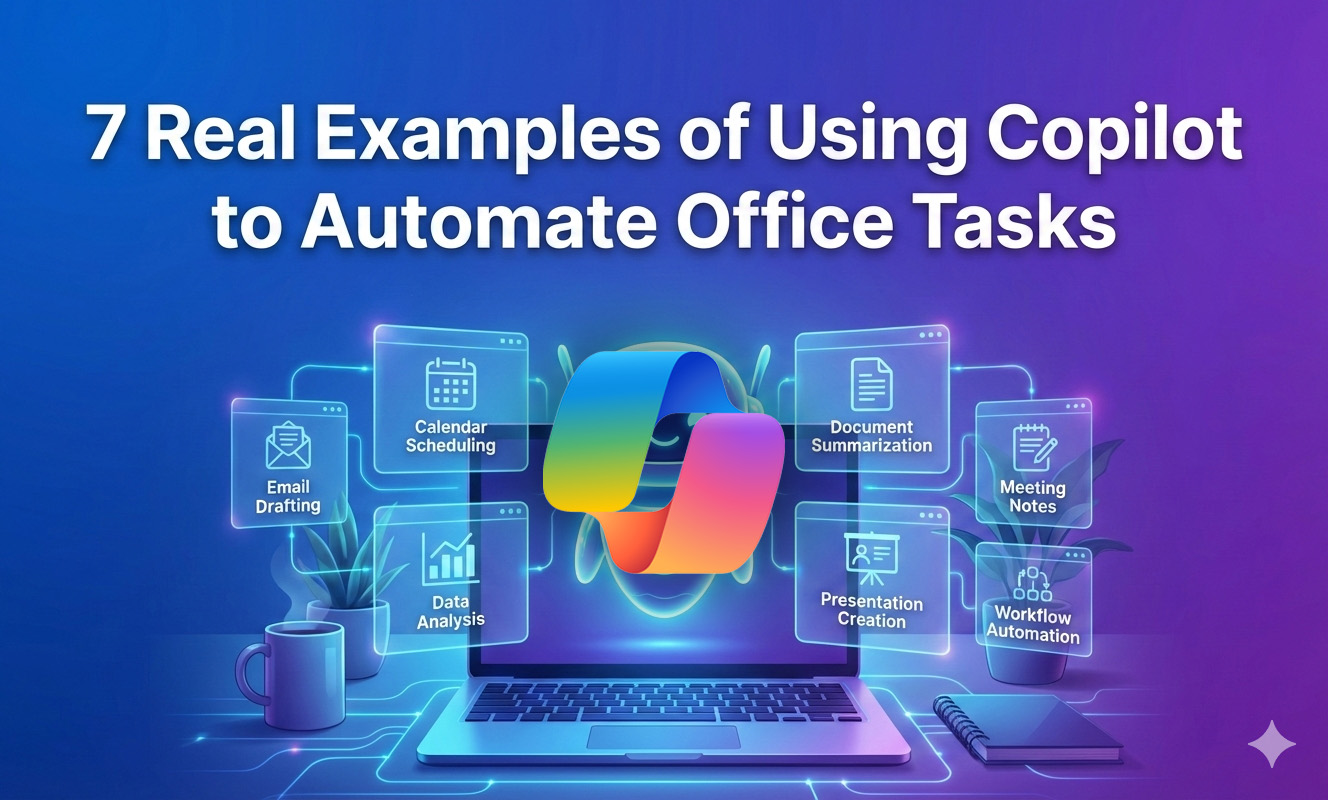
In this detailed guide, we’ll explore 7 real examples of using Copilot to automate Office tasks, with practical scenarios you can apply immediately in your work.
1. Automatically Drafting Professional Reports in Word
The Problem:
Writing reports from scratch takes hours—especially when you need to organize data, summarize findings, and maintain a professional tone.
How Copilot Automates It:
In Microsoft Word, Copilot can:
- Generate a complete report draft from bullet points
- Summarize long documents into executive summaries
- Rewrite content in a more formal or simplified tone
- Create structured sections with headings and subheadings
Real Example:
Imagine you are preparing a monthly sales report. Instead of writing everything manually, you type:
Create a 5-page monthly sales report based on this data. Include an executive summary, key insights, and recommendations.
Copilot:
- Analyzes the inserted data
- Structures the report
- Writes clear, professional content
- Adds suggested charts or tables (if applicable)
Time Saved:
What normally takes 2–3 hours can be reduced to 20–30 minutes.
2. Automating Data Analysis and Formula Creation in Excel
The Problem:
Not everyone is an Excel expert. Creating formulas, pivot tables, and analyzing large datasets can be overwhelming.
How Copilot Automates It:
Inside Microsoft Excel, Copilot can:
- Generate complex formulas automatically
- Create pivot tables
- Identify trends and patterns
- Summarize insights in plain English
- Build charts based on your data
Real Example:
You have 5,000 rows of sales data. Instead of manually analyzing, you type:
Analyze this data and show me which products had the highest growth in Q4.
Copilot:
- Scans the spreadsheet
- Creates a summary table
- Calculates growth percentages
- Generates a chart
- Explains the results clearly
Bonus Automation:
You can also ask:
Create a forecast for the next 3 months based on this data.
Copilot uses historical patterns to generate projections instantly.
Impact:
This is especially powerful for:
- Accountants
- Sales managers
- Business analysts
- Small business owners
3. Creating Presentations Automatically in PowerPoint
The Problem:
Building a professional presentation from scratch is time-consuming. You need to create slides, organize content, design layout, and write speaker notes.
How Copilot Automates It:
In Microsoft PowerPoint, Copilot can:
- Generate slides from a Word document
- Turn bullet points into full presentations
- Add speaker notes
- Suggest design layouts
- Summarize long reports into presentation format
Real Example:
You have a 10-page business proposal in Word. Instead of copying and pasting into slides, you type:
Create a 12-slide presentation based on this document.
Copilot:
- Extracts key points
- Structures slides logically
- Creates titles and bullet points
- Suggests visuals
- Adds speaker notes
Result:
You get a ready-to-edit presentation in minutes instead of hours.
This is ideal for:
- Teachers
- Corporate professionals
- Startup founders
- Marketing teams
4. Automating Email Responses in Outlook
The Problem:
Responding to emails consumes a large portion of the workday. Many emails are repetitive—status updates, meeting confirmations, follow-ups.
How Copilot Automates It:
In Microsoft Outlook, Copilot can:
- Draft replies based on email context
- Adjust tone (formal, friendly, concise)
- Summarize long email threads
- Suggest action items
- Create follow-up reminders
Real Example:
You receive a long client email asking for:
- Project status
- Delivery timeline
- Budget clarification
Instead of typing everything manually, you click Copilot and prompt:
Draft a professional response summarizing our current progress and next steps.
Copilot:
- Reviews the entire email thread
- Extracts relevant details
- Drafts a structured response
- Maintains professional tone
Productivity Boost:
If you respond to 50 emails daily, even saving 1–2 minutes per email can save over an hour each day.
5. Generating Meeting Summaries in Teams
The Problem:
After meetings, someone has to write minutes, summarize decisions, and list action items. This is often forgotten or delayed.
How Copilot Automates It:
Inside Microsoft Teams, Copilot can:
- Transcribe meetings
- Summarize key discussion points
- Identify decisions made
- Generate action items
- Assign tasks
Real Example:
After a 1-hour strategy meeting, you ask:
Summarize this meeting and list action items by person.
Copilot:
- Reviews the meeting transcript
- Identifies important points
- Organizes tasks clearly
- Labels responsibilities
Benefit:
No more manual note-taking. Every meeting becomes documented and organized automatically.
This improves:
- Accountability
- Team coordination
- Project management
6. Automating Content Creation for Marketing Teams
The Problem:
Marketing teams constantly create:
- Blog posts
- Social media captions
- Email campaigns
- Product descriptions
Creating content repeatedly can lead to burnout and inconsistency.
How Copilot Automates It:
Using Copilot across Word and Outlook, marketers can:
- Draft SEO-optimized blog posts
- Rewrite content for different platforms
- Generate multiple headline variations
- Create email marketing sequences
Real Example:
You type in Word:
“Write a 1,000-word blog post about remote work productivity tips optimized for SEO.”
Copilot:
- Structures headings properly
- Uses keyword variations
- Writes engaging content
- Suggests meta descriptions
Then you ask:
Create 5 Facebook captions promoting this blog post.
Copilot instantly repurposes the content.
Why This Matters:
Automation doesn’t replace creativity—it speeds up the first draft so teams can focus on strategy and optimization.
7. Automating Task Planning and Project Breakdown
The Problem:
Project planning requires:
- Breaking down large goals
- Assigning deadlines
- Creating task lists
- Tracking progress
How Copilot Automates It:
Using Copilot in Word, Teams, or Planner integrations, you can:
- Convert meeting notes into task lists
- Create project timelines
- Generate checklists
- Assign responsibilities
Real Example:
You paste this goal:
“Launch a new product in 60 days.”
Then prompt:
Break this into weekly tasks with milestones and responsibilities.
Copilot:
- Creates a detailed roadmap
- Organizes tasks by week
- Suggests deadlines
- Structures milestones
Result:
What usually takes a 2-hour planning session can be done in minutes.
Why Using Copilot to Automate Office Tasks Is a Game-Changer
Here’s why professionals are adopting Microsoft Copilot rapidly:
- Saves Time – Reduces repetitive manual work.
- Improves Accuracy – Minimizes human error in data analysis and reporting.
- Boosts Productivity – Employees focus on strategy instead of formatting and drafting.
- Enhances Creativity – Provides ideas and drafts that spark better thinking.
- Works Across Microsoft 365 – Seamless integration across Word, Excel, PowerPoint, Outlook, and Teams.
Best Practices When Using Copilot
To get the most out of Copilot:
Be Specific With Prompts
Instead of: “Write a report.”
Try: “Write a 5-page formal report summarizing Q4 sales performance with charts and recommendations.”
Review and Edit
Copilot creates strong drafts—but always review for accuracy and tone.
Use Iterative Prompts
Ask follow-up questions like:
- “Make this more concise.”
- “Add data-driven insights.”
- “Rewrite in a persuasive tone.”
Final Thoughts
The future of work is automation—and Microsoft Copilot is leading the way inside Microsoft 365.
These 7 real examples of using Copilot to automate Office tasks show that AI is no longer just a trend—it’s a powerful assistant that helps professionals save time, improve accuracy, and focus on meaningful work.
Whether you’re:
- A business owner
- A corporate employee
- A student
- A marketer
- A project manager
Copilot can dramatically transform how you use Microsoft Office tools. The key is simple: start experimenting. The more specific your prompts, the more powerful your results.
Read Also: