
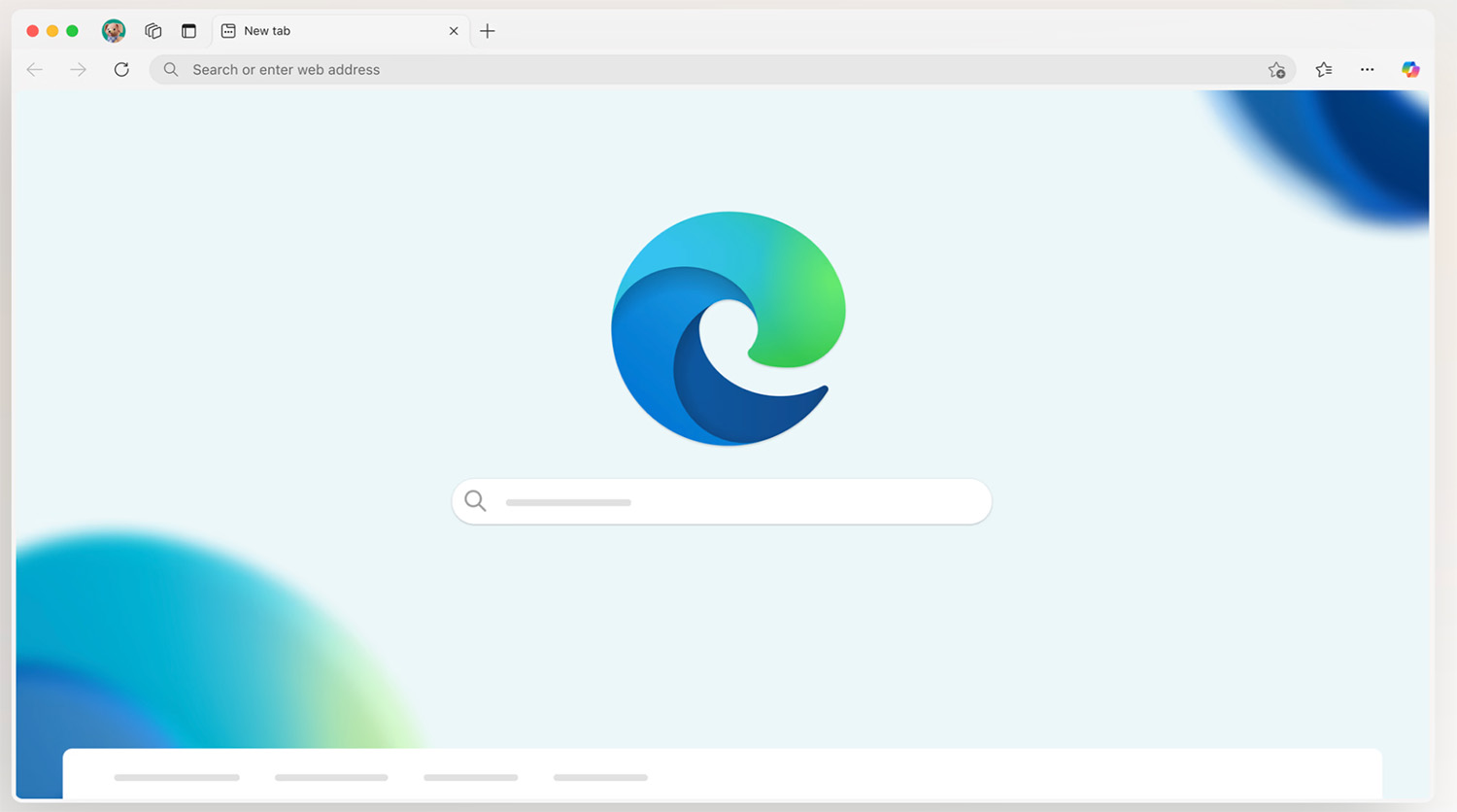
If you are looking for a fast, secure, and productivity-focused browser, Microsoft Edge should be at the top of your list. Over the past few years, Edge has evolved into one of the most powerful web browsers available today—especially for students, professionals, and businesses using Microsoft Office and Windows.
In this comprehensive guide, we’ll explore everything you need to know about Microsoft Edge, including its key features, performance advantages, security tools, productivity integrations, and why it’s an excellent choice for everyday browsing in 2026.
What Is Microsoft Edge?
Microsoft Edge is a modern web browser developed by Microsoft. It was first introduced in 2015 as the successor to Internet Explorer. In 2020, Microsoft rebuilt Edge using the Chromium engine, the same open-source foundation used by Google Chrome.
This shift dramatically improved compatibility, speed, and extension support—making Edge competitive with Chrome, Firefox, and other major browsers.
Today, Microsoft Edge is available on:
- Windows
- macOS
- Linux
- Android
- iOS
It’s also the default browser in Windows 11 and integrates deeply with Microsoft services like OneDrive, Outlook, and Office apps.
Why Microsoft Edge Is Growing in Popularity
Many users are switching to Edge because it offers a balance between speed, privacy, and productivity. Here are some reasons why Microsoft Edge continues to gain users worldwide:
1. Fast and Efficient Performance
Because it is built on Chromium, Microsoft Edge loads websites quickly and handles complex web apps smoothly. Compared to many browsers, Edge is optimized for Windows, meaning it often consumes less RAM and battery power.
For laptop users and students, this translates to:
- Longer battery life
- Smoother multitasking
- Faster startup times
2. Built-in AI and Copilot Integration
One of the standout features of Microsoft Edge is its integration with AI tools. With built-in AI assistance powered by Microsoft technologies, users can:
- Summarize long web pages
- Generate content ideas
- Rewrite text instantly
- Ask questions directly in the sidebar
This makes Edge especially useful for:
- Bloggers
- Students writing research papers
- Office professionals preparing reports
Instead of switching between apps, you can work directly within the browser.
3. Seamless Microsoft Office Integration
Microsoft Edge works exceptionally well with Microsoft Office apps like:
- Word Online
- Excel Online
- PowerPoint Online
- OneDrive
You can edit documents, collaborate in real-time, and store files in the cloud without installing additional software.
For businesses using Microsoft 365, Edge provides secure sign-in, syncing across devices, and enhanced enterprise security.
Top Features of Microsoft Edge
Let’s explore the most powerful features that make Microsoft Edge stand out.
1. Collections for Research and Organization
The Collections feature allows you to:
- Save web pages
- Add notes
- Organize research materials
- Export data to Word or Excel
For students and researchers, this is extremely helpful when gathering information for reports or projects.
Instead of bookmarking dozens of pages, you can organize everything neatly in one panel.
2. Vertical Tabs for Better Productivity
If you open many tabs while working, you’ll love Vertical Tabs.
With one click, your tabs move from the top of the screen to the left side. This:
- Reduces clutter
- Shows full page titles
- Makes multitasking easier
It’s a small feature that significantly improves productivity.
3. Built-In PDF Reader
Microsoft Edge includes a powerful PDF reader. You can:
- Highlight text
- Add notes
- Fill out forms
- Draw annotations
For professionals who frequently handle documents, this eliminates the need for third-party PDF software.
4. Immersive Reader
The Immersive Reader feature removes ads and distractions from web pages. It also:
- Adjusts text size
- Changes background color
- Reads text aloud
This is especially helpful for:
- Students
- Users with reading difficulties
- People who want distraction-free reading
5. Smart Copy
When copying tables or structured data from a webpage, Smart Copy preserves formatting. This is incredibly useful when pasting information into Word or Excel.
Microsoft Edge Security Features
Security is one of the strongest advantages of Microsoft Edge.
1. Microsoft Defender SmartScreen
Edge uses Microsoft Defender SmartScreen to protect users from:
- Phishing websites
- Malware downloads
- Suspicious links
It warns you before accessing potentially harmful sites.
2. Tracking Prevention
Edge includes built-in tracking prevention with three levels:
- Basic
- Balanced
- Strict
Balanced mode (default) blocks harmful trackers while maintaining website functionality.
3. Password Monitor
If your saved passwords are found in a data breach, Microsoft Edge alerts you immediately so you can update them.
4. InPrivate Browsing
InPrivate mode allows you to browse without saving:
- History
- Cookies
- Temporary files
This is useful when using public or shared computers.
Microsoft Edge vs Google Chrome
Many users ask: Is Microsoft Edge better than Chrome?
Here’s a quick comparison:
| Feature | Microsoft Edge | Google Chrome |
| Built-in AI | Yes | Limited |
| Vertical Tabs | Yes | No (native) |
| RAM Usage | Generally lower | Higher |
| Office Integration | Excellent | Limited |
| Chromium-based | Yes | Yes |
Since both browsers use Chromium, they support the same extensions from the Chrome Web Store.
However, if you rely heavily on Microsoft services, Edge provides a more integrated experience.
Microsoft Edge for Students
Students benefit greatly from using Microsoft Edge because of:
- Immersive Reader
- PDF annotation tools
- AI summarization
- Collections for research
- Seamless OneDrive syncing
Instead of juggling multiple apps, students can complete assignments directly within the browser.
Microsoft Edge for Business Users
Businesses prefer Microsoft Edge for several reasons:
- Enterprise-grade security
- Group policy management
- Integration with Microsoft 365
- Data protection features
IT administrators can manage Edge settings across company devices, ensuring consistency and security.
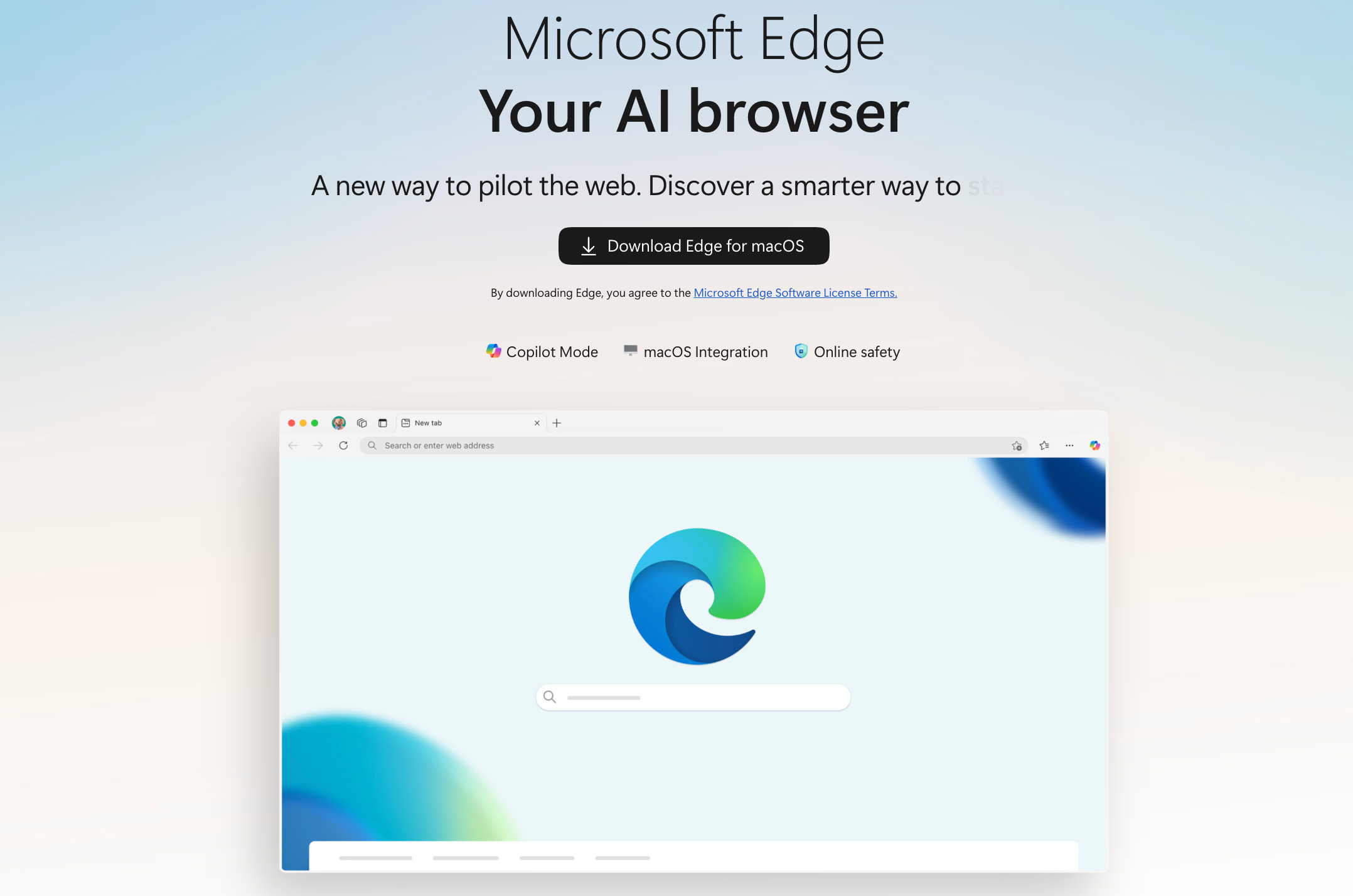
How to Download and Install Microsoft Edge
You can download Microsoft Edge directly from the official Microsoft website.
Steps:
- Visit the Microsoft Edge official page.
- Choose your operating system and click Download.
- Follow installation instructions.
If you’re using Windows 11, Edge is already installed as the default browser.
Tips to Maximize Productivity in Microsoft Edge
Here are practical tips to use Edge more efficiently:
Enable Sync Across Devices
Sign in with your Microsoft account to sync:
- Bookmarks
- Passwords
- Extensions
- History
Use Web Capture
Take screenshots of webpages directly in the browser.
Install Extensions
Since Edge supports Chrome extensions, you can install:
- Grammarly
- Ad blockers
- Productivity tools
Pin Important Tabs
Right-click a tab and select “Pin” to keep it permanently accessible.
Is Microsoft Edge Worth Using in 2026?
Absolutely.
Microsoft Edge is no longer just a default browser—it’s a powerful productivity tool designed for modern users.
With:
- Strong security
- Deep Microsoft integration
- AI-powered tools
- Efficient performance
- Cross-platform support
Edge is an excellent choice for students, professionals, bloggers, and businesses.
If your workflow involves Microsoft Office, cloud storage, and online research, switching to Microsoft Edge can significantly improve efficiency.
Conclusion
In 2026, Microsoft Edge stands as one of the most complete and secure browsers available. Whether you’re writing reports, researching online, managing business tasks, or simply browsing the web, Edge provides a fast and intelligent experience.
For those who regularly use Word, Excel, and other Microsoft tools, Microsoft Edge is more than just a browser—it’s a productivity companion.
If you haven’t tried it yet, now is the perfect time to explore everything Edge has to offer.