
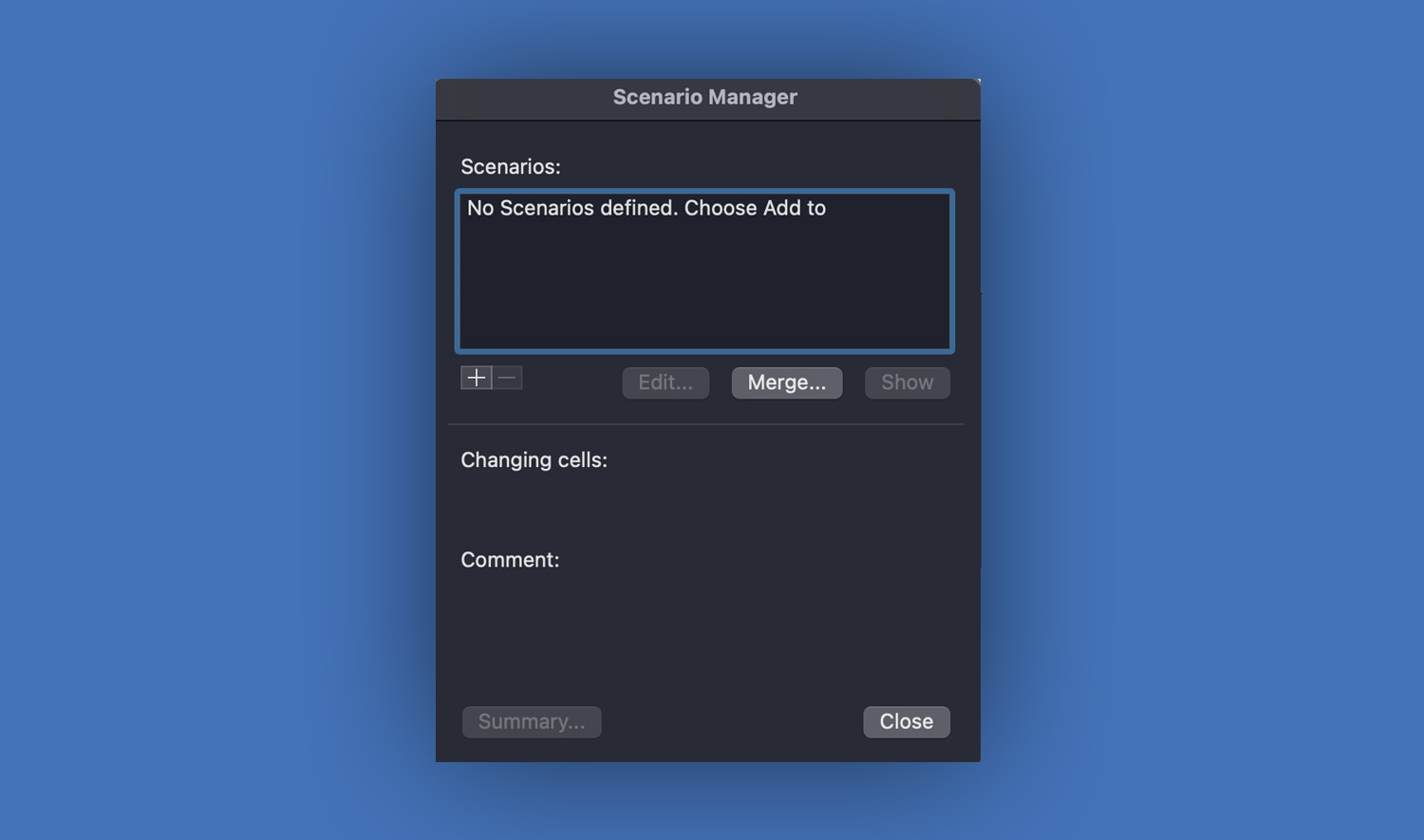
When working with data in Microsoft Excel, you often need to explore different possibilities—like “What happens if sales increase?” or “What if expenses go down?” This is where Scenario Manager becomes incredibly useful. It allows you to create and compare multiple sets of values (scenarios) without changing your original data.
This guide will walk you through what Scenario Manager is, how to use it step by step, and how it can help you make better decisions using Excel.
What is Scenario Manager?
Scenario Manager is a built-in feature in Excel under the What-If Analysis tools. It lets you save different groups of input values and switch between them to see how they affect your results.
Instead of manually changing values again and again, Scenario Manager allows you to:
- Store multiple scenarios
- Compare outcomes easily
- Generate summary reports
This is especially useful in budgeting, forecasting, financial planning, and decision-making.
When Should You Use Scenario Manager?
You should use Scenario Manager when:
- You want to compare different outcomes (best case, worst case, most likely)
- You have multiple variables affecting a result
- You need to present different possibilities clearly
For example, imagine you are calculating profit:
- Revenue
- Costs
- Discounts
You can create different scenarios like:
- High Sales Scenario
- Low Sales Scenario
- Expected Scenario
Where to Find Scenario Manager in Excel
To access Scenario Manager in Microsoft Excel:
- Go to the Data tab
- Click What-If Analysis
- Select Scenario Manager
Step-by-Step: How to Use Scenario Manager
Let’s go through a simple example to understand how it works.
Step 1: Prepare Your Data
Create a simple worksheet like this:
| Description | Value |
| Sales | 10000 |
| Expenses | 6000 |
| Profit | =A1-A2 |
(Profit is calculated using a formula)
Step 2: Open Scenario Manager
- Click the Data tab
- Select What-If Analysis
- Click Scenario Manager

Step 3: Add a Scenario
- Click Add
- Enter a name (e.g., High Sales)
- In Changing cells, select the cells you want to modify (e.g., Sales and Expenses)
- Click OK
- Enter new values (e.g., Sales = 15000, Expenses = 7000)
- Click OK
Step 4: Create More Scenarios
Repeat the process to create additional scenarios, such as:
- Low Sales
- Sales = 8000
- Expenses = 5000
- Expected Scenario
- Sales = 12000
- Expenses = 6500
Step 5: View Scenarios
- Open Scenario Manager
- Select a scenario
- Click Show
Excel will automatically update your worksheet with the selected values so you can see the result instantly.
Step 6: Generate a Scenario Summary Report
- In Scenario Manager, click Summary
- Choose the result cell (e.g., Profit)
- Click OK
Excel will create a new worksheet showing a comparison of all scenarios.
Benefits of Using Scenario Manager
Scenario Manager offers several advantages:
- Easy Comparison – You can quickly switch between different sets of data.
- Time-Saving – No need to manually change values repeatedly.
- Better Decision-Making – Helps you analyze risks and opportunities.
- Organized Analysis – All scenarios are stored in one place.
Practical Use Cases
Scenario Manager is widely used in real-world situations:
- Budget Planning – Compare different income and expense scenarios
- Business Forecasting – Analyze future sales possibilities
- Loan Calculations – Evaluate different interest rates and payment terms
- Project Planning – Estimate best-case and worst-case outcomes
Tips for Using Scenario Manager Effectively
- Keep your data organized and clearly labeled
- Use meaningful names for scenarios (e.g., “Best Case”)
- Limit the number of changing cells for simplicity
- Always double-check formulas before creating scenarios
Scenario Manager vs Other What-If Tools
In Microsoft Excel, Scenario Manager is just one of several What-If Analysis tools:
- Goal Seek – Finds the input needed to achieve a specific result
- Data Tables – Shows results for multiple values in a table format
Scenario Manager is best when you want to compare a few defined sets of values rather than large data ranges.
Conclusion
Scenario Manager in Microsoft Excel is a powerful yet easy-to-use tool for analyzing different possibilities in your data. Whether you are managing a budget, forecasting sales, or planning projects, it helps you visualize outcomes and make informed decisions.
By following the steps in this guide, you can start creating and comparing scenarios in just a few minutes. Once you get comfortable with it, Scenario Manager will become an essential part of your Excel toolkit.
Read Also: How to Use Solver in Excel (Step-by-Step Guide for Beginners)