
If you’ve ever felt confused about online classes, you’re definitely not alone. Many students and even teachers initially struggle with where to click, how to submit assignments, or how to stay organized in a virtual setup. The good news is that Google Classroom was designed to make online learning much simpler, even if you’re not very tech-savvy.
Created by Google, google classroom acts like a digital classroom where everything is in one place—your lessons, assignments, announcements, and communication with your teacher or classmates. Instead of juggling notebooks, printed handouts, and emails, you can manage everything using just your phone or computer.
Whether you’re a student attending online classes, a teacher managing lessons, or even a parent trying to understand how things work, this detailed guide will walk you through Google Classroom step by step in a way that’s easy to follow and practical in real-life use.
What is Google Classroom?
Google Classroom is a free online learning platform that allows teachers to create virtual classrooms and students to participate in them. It is part of Google’s ecosystem, meaning it works smoothly with tools like Google Docs, Google Drive, Google Slides, and Google Meet.
Instead of traditional classroom methods, everything happens digitally. Teachers can post lessons, give assignments, and grade work, while students can complete and submit tasks without needing paper.
Why Google Classroom is So Popular
One of the main reasons Google Classroom is widely used is because it removes a lot of the stress from managing schoolwork. Everything is organized automatically, and you don’t have to worry about losing papers or forgetting instructions.
It also saves time. Teachers can post one assignment and instantly share it with the whole class. Students can submit their work with just a few clicks. On top of that, communication becomes easier because messages and feedback are all in one place.
Another big advantage is accessibility. As long as you have internet access, you can open Google Classroom anytime—whether you’re at home, in school, or on the go.
What You Need to Get Started
Before using Google Classroom, make sure you have the following:
- A Google account (Gmail)
- A stable internet connection
- A device (laptop, desktop, tablet, or smartphone)
You don’t need to install anything on a computer since it works directly in your browser. However, you can download the mobile app if you prefer using your phone.
Step-by-Step Guide on How to Use Google Classroom
Step 1: Sign In to Google Classroom

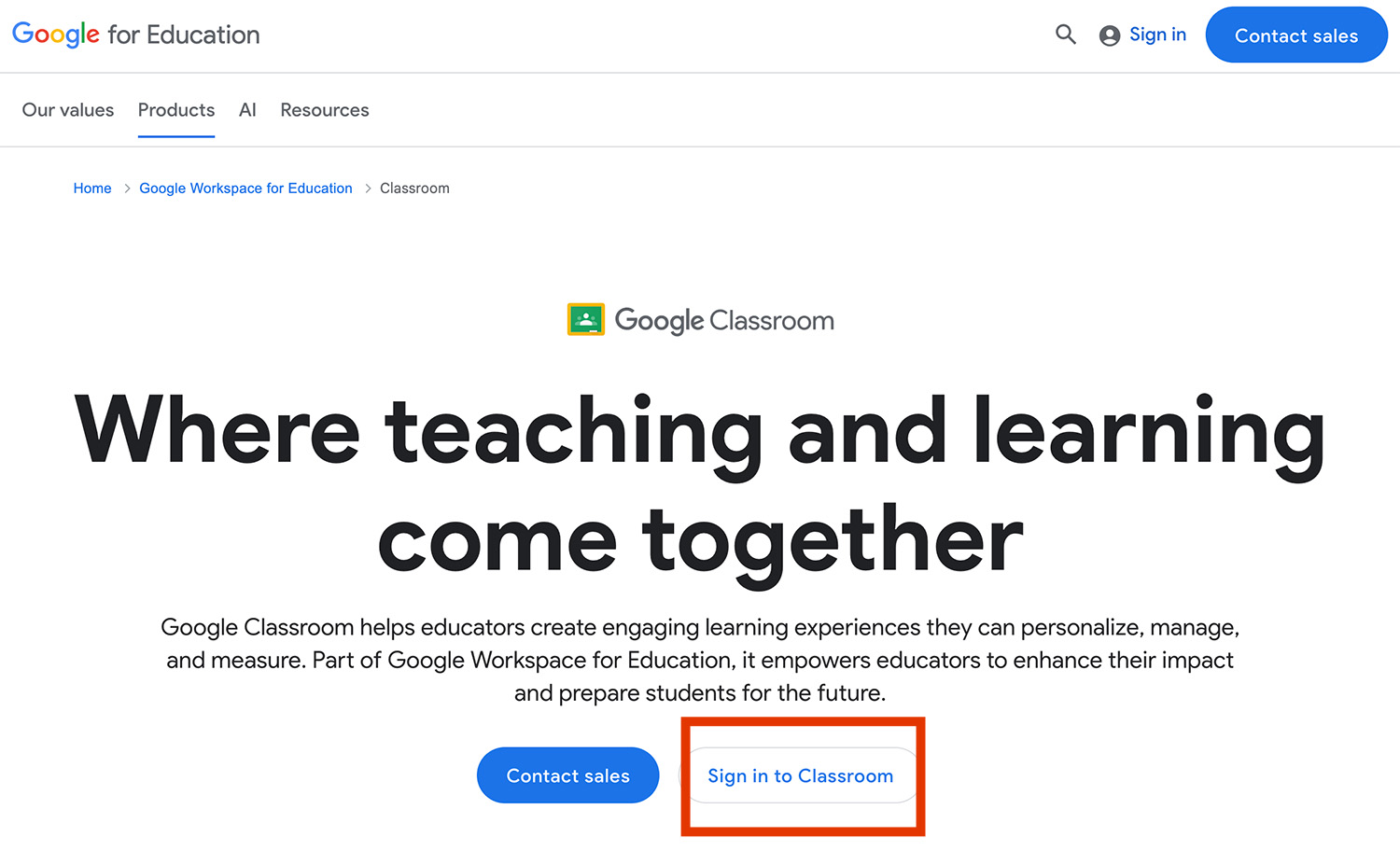
To begin using Google Classroom, you need to log in.
- Open your browser and go to classroom.google.com
- Click Sign in to Classroom
- Sign in using your Gmail account
- Choose your role (student or teacher) if asked
After logging in, you will see your dashboard. This is where all your classes will appear.
Step 2: Join or Create a Class
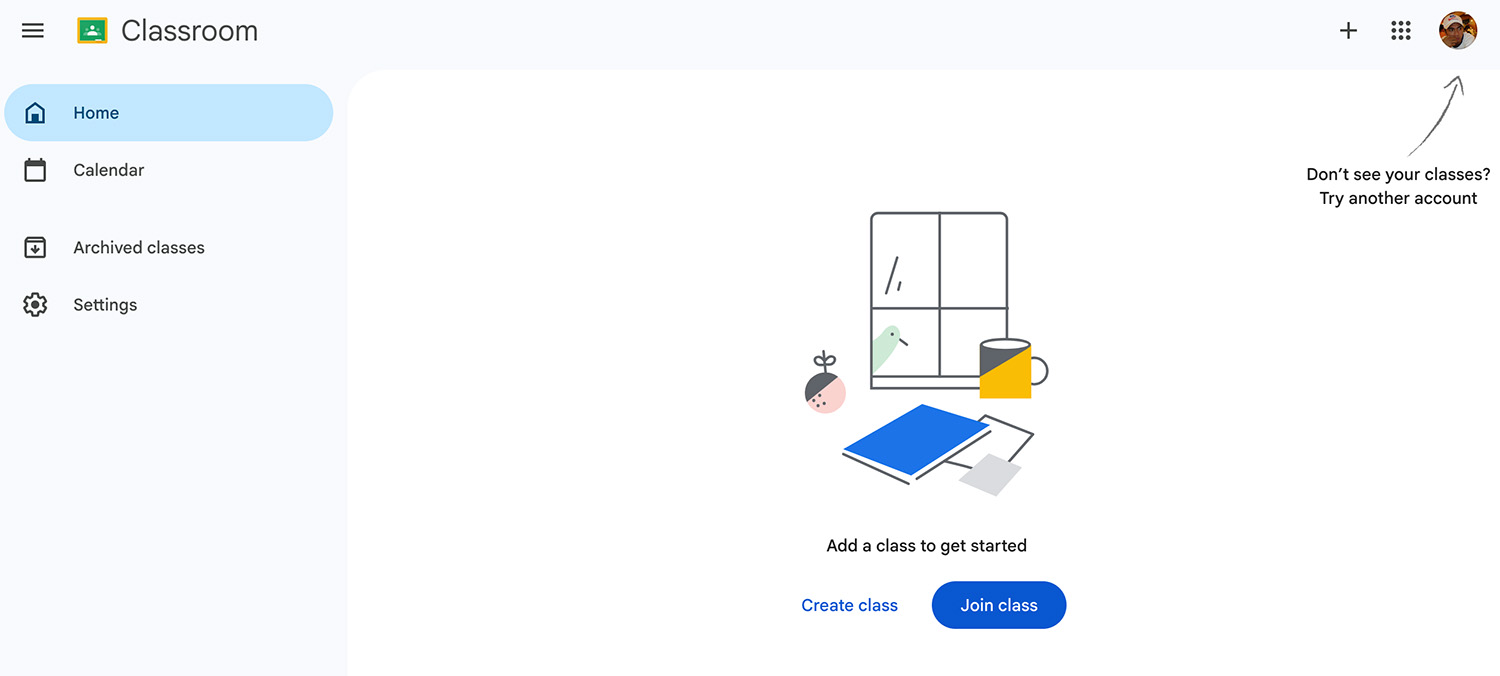
For Students: Joining a Class
If you’re a student, your teacher will give you a class code. Here’s how to join:
- Click the “+” icon in the top right corner
- Select Join class
- Enter the class code
- Click Join
Once you’re in, you’ll immediately see announcements and assignments posted by your teacher.
For Teachers: Creating a Class
If you’re a teacher, setting up a class is quick and straightforward:
- Click the “+” icon
- Select Create class
- Fill in the details such as:
- Class name (e.g., Grade 10 Math)
- Section
- Subject
- Click Create
After creating the class, you’ll receive a unique class code to share with your students.
Step 3: Getting Familiar with the Dashboard
When you open a class in Google Classroom, you’ll see three main sections. Understanding these will make everything easier.
Stream (Announcements Area)
Think of the Stream as your classroom bulletin board. This is where teachers post updates, reminders, and announcements. Students can also comment here, depending on settings.
Classwork (Where Learning Happens)
This is the most important part of Google Classroom. All assignments, quizzes, and materials are organized here.
Teachers can group content into topics like:
- Week 1 Lessons
- Activities
- Exams
This helps keep everything neat and easy to find.
People (Class Members)
In this section, you can see:
- Your teacher(s)
- Your classmates
Teachers can also invite more students or other teachers here.
Step 4: How to View Assignments
To check your tasks in Google Classroom, follow these steps:
- Click on the Classwork tab
- Look for your assignment (usually listed by date or topic)
- Click the assignment to open it
- Read all instructions carefully
Many assignments include attachments like documents, links, or videos. Always review them before starting your work.
Step 5: How to Complete and Submit Assignments
Submitting your work correctly is very important in Google Classroom.
- Open the assignment
- Click Add or create
- Choose what you want to submit:
- Upload a file (PDF, Word, image)
- Create a Google Doc, Slide, or Sheet
- Finish your work
- Click Turn in
- Confirm submission
Once submitted, your teacher will be notified immediately.
Step 6: How to Edit or Resubmit Work
Sometimes you may need to fix or update your assignment.
- Open your submitted assignment
- Click Unsubmit
- Make the necessary changes
- Click Turn in again
Be careful—some teachers may not allow resubmissions after the deadline.
Step 7: How to Communicate in Google Classroom
Communication is built into google classroom, making it easy to stay connected.
You can:
- Ask questions in the Stream
- Comment on assignments
- Send private messages to your teacher
Teachers can:
- Respond to your questions
- Give feedback on your work
- Post important updates
This helps create a more interactive learning experience, even when you’re not physically in a classroom.
Step 8: How to Check Grades and Feedback
To see your performance:
- Open an assignment
- Look at your score
- Read feedback from your teacher
Feedback is very helpful because it shows what you did well and what you need to improve.
Step 9: Using Google Classroom on Your Phone
If you prefer mobile learning, you can download the Google Classroom app.
Steps:
- Go to the Play Store or App Store
- Search for Google Classroom
- Install the app
- Log in with your Google account
Using the app, you can:
- Receive instant notifications
- Submit assignments quickly
- Stay updated anywhere
Practical Tips for Using Google Classroom
To get the best experience with Google Classroom, make it a habit to check your class daily. Many students miss deadlines simply because they forget to log in.
Always read instructions carefully before starting your work. If something is unclear, don’t hesitate to ask your teacher. Also, try to submit assignments early to avoid last-minute problems like slow internet or file errors.
Keeping your files organized in Google Drive will also help you work faster and avoid confusion.
Common Problems and How to Fix Them
Sometimes you may encounter issues while using Google Classroom. If you cannot join a class, double-check the code provided by your teacher. If you’re having trouble submitting work, make sure your file format is supported and your internet connection is stable.
If you’re not receiving notifications, check your app or browser settings and enable alerts for Google Classroom.
Benefits of Google Classroom
For students, Google Classroom makes learning more flexible and accessible. You can study at your own pace and revisit lessons anytime.
For teachers, it simplifies class management by organizing everything in one place. It also reduces paperwork and makes grading more efficient.
Overall, it creates a smoother and more organized learning experience for everyone.
Conclusion
Learning how to use Google Classroom may seem overwhelming at first, but once you understand the basics, it becomes very easy to use. From joining a class to submitting assignments and communicating with your teacher, everything is designed to be simple and efficient.
By following this step-by-step guide, you’ll be able to confidently use Google Classroom in your daily learning or teaching routine. With consistent use, it will become one of your most valuable tools for education.
Read Also: How to Use Google Docs | Complete Guide