
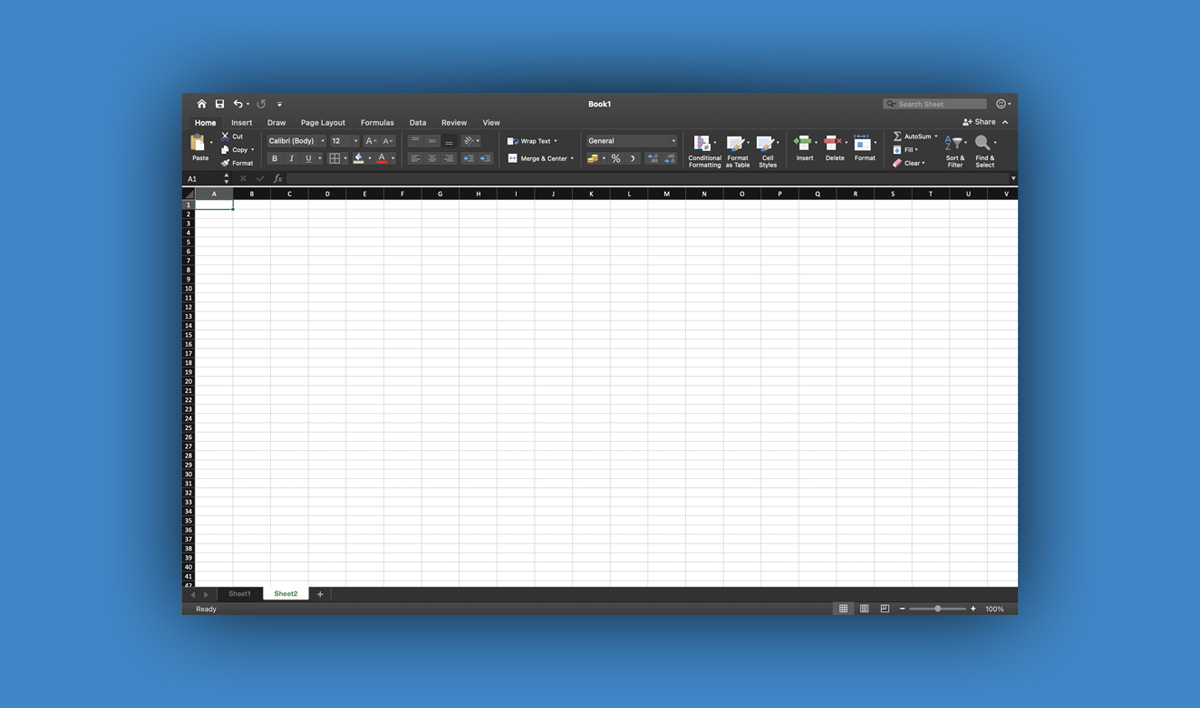
An excel sheet is one of the most powerful tools you can use for organizing data, managing finances, tracking projects, and analyzing information. Whether you’re a student, employee, freelancer, or business owner, learning how to use an excel sheet effectively can save you time and increase your productivity.
In this detailed and easy-to-understand guide, we will explain what an excel sheet is, its main features, how to create one, essential formulas, formatting tips, and practical examples you can apply right away.
What Is an Excel Sheet?
An excel sheet is a digital spreadsheet created using Microsoft Excel, a popular spreadsheet program developed by Microsoft Corporation. It consists of rows and columns that form cells where you can enter text, numbers, and formulas.
Each file in Excel is called a workbook, and inside each workbook, you can have multiple excel sheets (also called worksheets).
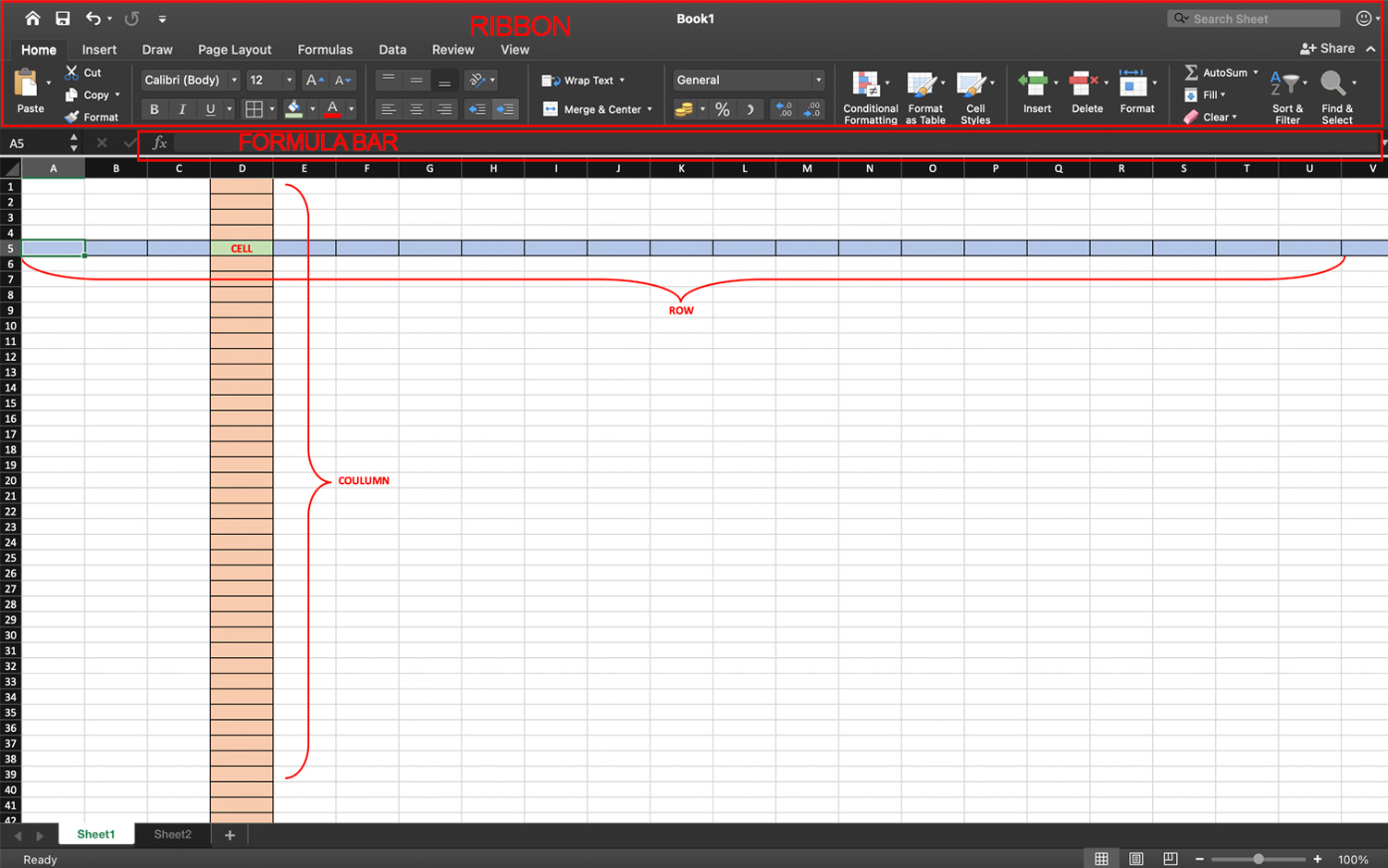
Key Components of an Excel Sheet
To understand how an excel sheet works, you need to know its basic parts:
- Rows – Numbered horizontally (1, 2, 3…)
- Columns – Lettered vertically (A, B, C…)
- Cells – The intersection of rows and columns (e.g., A1, B2)
- Formula Bar – Displays or edits data in a selected cell
- Ribbon – Contains tools and commands
Once you understand these basics, working with an excel sheet becomes much easier.
Why Is an Excel Sheet Important?
An excel sheet is widely used in homes, schools, and businesses because it helps:
- Organize data efficiently
- Perform automatic calculations
- Create charts and graphs
- Track budgets and expenses
- Manage inventory
- Analyze reports
Instead of calculating everything manually, an excel sheet allows you to automate tasks using formulas and functions.
How to Create an Excel Sheet (Step-by-Step Guide)
If you’re new to Excel, follow these simple steps:
Step 1: Open Excel
Launch Microsoft Excel from your computer.
Step 2: Create a New Workbook
Click New → Choose Blank Workbook.
Step 3: Start Entering Data
Click any cell (for example, A1) and start typing.
Example:
| A (Name) | B (Score) |
| John | 85 |
| Maria | 90 |
| Carlo | 78 |
This simple table is already an excel sheet.
Step 4: Save Your Excel Sheet
Click File → Save As and choose a location.
Your file will usually be saved as .xlsx.
Basic Formulas Every Excel Sheet User Should Know
Formulas make an excel sheet powerful. Here are essential ones:
1. SUM Formula
Adds numbers together.
Example:
=SUM(B1:B3)
This adds values from cell B1 to B3.
2. AVERAGE Formula
Finds the average.
=AVERAGE(B1:B3)
3. COUNT Formula
Counts numeric cells.
=COUNT(B1:B10)
4. IF Formula
Used for logical conditions.
Example:
=IF(B2>=75,”Passed”,”Failed”)
This formula automatically shows whether a student passed or failed.
Read: Top 20 Excel Formulas Every Professional Must Know
Formatting Your Excel Sheet for Better Presentation
A well-formatted excel sheet looks professional and is easier to read.
- Use Bold Headers: Select header row → Click Bold.
- Adjust Column Width: Double-click the column boundary to auto-adjust.
- Apply Borders: Highlight your table → Click Borders.
- Use Conditional Formatting: This highlights data automatically.
Example:
- Highlight scores below 75 in red
- Highlight top scores in green
Formatting improves clarity and makes your excel sheet easier to understand.
How to Create Charts from an Excel Sheet
Visual data is easier to understand than raw numbers.
Steps to Create a Chart:
- Select your data.
- Click Insert.
- Choose a chart type (Bar, Line, Pie, etc.).
Charts help you:
- Track sales growth
- Compare student performance
- Analyze monthly expenses
An excel sheet combined with charts becomes a powerful reporting tool.
Practical Uses of an Excel Sheet
Let’s explore real-life examples where an excel sheet is useful.
1. Budget Tracking
You can create columns like:
| Date | Description | Income | Expense | Balance |
Using formulas, your balance updates automatically.
2. Attendance Monitoring
Teachers use excel sheets to track:
- Student names
- Days present
- Days absent
3. Inventory Management
Businesses track:
- Product names
- Quantity
- Price
- Total value
4. Project Management
An excel sheet can track:
- Task names
- Deadlines
- Status
- Assigned team member
Tips to Improve Your Excel Sheet Skills
If you want to become more advanced, try these tips:
Learn Keyboard Shortcuts
- Ctrl + C → Copy
- Ctrl + V → Paste
- Ctrl + S → Save
- Ctrl + Z → Undo
Use Tables Feature
Select data → Click Format as Table.
This makes sorting and filtering easier.
Freeze Panes
Keeps headers visible while scrolling.
Use Filters
Click Data → Filter to sort and find information quickly.
Common Excel Sheet Mistakes to Avoid
Even beginners can avoid these simple mistakes:
- Not saving regularly
- Typing numbers as text
- Forgetting to use absolute references ($A$1)
- Overcomplicating formulas
- Not backing up files
Being careful with these ensures your excel sheet works correctly.
Excel Sheet for Students
Students can use an excel sheet to:
- Track grades
- Create study schedules
- Manage school expenses
- Organize research data
Learning Excel early gives students a big advantage in school and future jobs.
Excel Sheet for Small Businesses
Small businesses benefit greatly from using an excel sheet for:
- Sales reports
- Payroll tracking
- Expense monitoring
- Profit analysis
Instead of buying expensive software, many small businesses rely on Excel because it’s flexible and powerful.
Excel Sheet vs Google Sheets
Many people compare Excel with Google Sheets, a cloud-based spreadsheet tool from Google LLC.
Excel Sheet Advantages:
- Advanced formulas
- Better performance for large data
- Offline access
- Powerful data analysis tools
Google Sheets Advantages:
- Free to use
- Real-time collaboration
- Cloud-based storage
Both tools are excellent, but Excel remains the industry standard in many companies.
Advanced Features of an Excel Sheet
Once you’re comfortable with basics, explore advanced tools:
Pivot Tables
Summarize large data quickly.
VLOOKUP / XLOOKUP
Find data in large tables automatically.
Data Validation
Create dropdown lists.
Macros
Automate repetitive tasks. Mastering these features makes you highly valuable in the workplace.
Is Learning Excel Sheet Worth It in 2026?
Absolutely. Even with AI tools growing rapidly, spreadsheet skills remain important.
Many employers list Excel skills as a requirement for:
- Office jobs
- Accounting
- Data analysis
- Administration
- Business management
Knowing how to use an excel sheet increases job opportunities and productivity.
Final Thoughts
An excel sheet is more than just a table of numbers — it is a powerful tool for organizing, analyzing, and presenting information. Whether you’re tracking your budget, managing a small business, or analyzing school data, Excel makes tasks easier and more efficient.
The good news is that anyone can learn it. Start with basic formulas, practice formatting, explore charts, and gradually move into advanced features like Pivot Tables and lookup functions.
With consistent practice, you’ll become confident in creating and managing any excel sheet.